
Share OTP Between Devices in Under 10 Seconds (No App)

Your OTP lands on your phone, but you’re logging in on your laptop. You’ve got maybe 60 seconds before it expires, and now you’re squinting at a tiny screen typing six digits under pressure. If this happens to you more than once a week, you don’t have a phone problem, you have a workflow problem, and it’s fixable in seconds once you know how to share OTP between devices properly.
This guide walks through exactly how to do it safely, without emailing yourself, without WhatsApp-messaging yourself, and without typing anything manually while racing a countdown timer.
Why People Struggle to Share OTP Between Devices
Most workarounds people use today are slow or risky. Screenshotting the OTP and emailing it to yourself means it now sits permanently in two inboxes. Messaging yourself on WhatsApp Web means staying logged into a browser session on whatever computer you’re using, which is a real problem on a shared or public machine. And manually typing six digits from a small phone screen while a 30-60 second timer runs is just asking to fumble it and request a new one.
The Real Risk With Screenshots and Chat Messages
An OTP is meant to be single-use and short-lived by design. The moment you save it permanently in an email or chat thread, you’ve defeated the entire point of it being temporary. If that account ever gets compromised later, old OTPs sitting in your message history are one more thing an attacker could piece together, even if they’re expired.
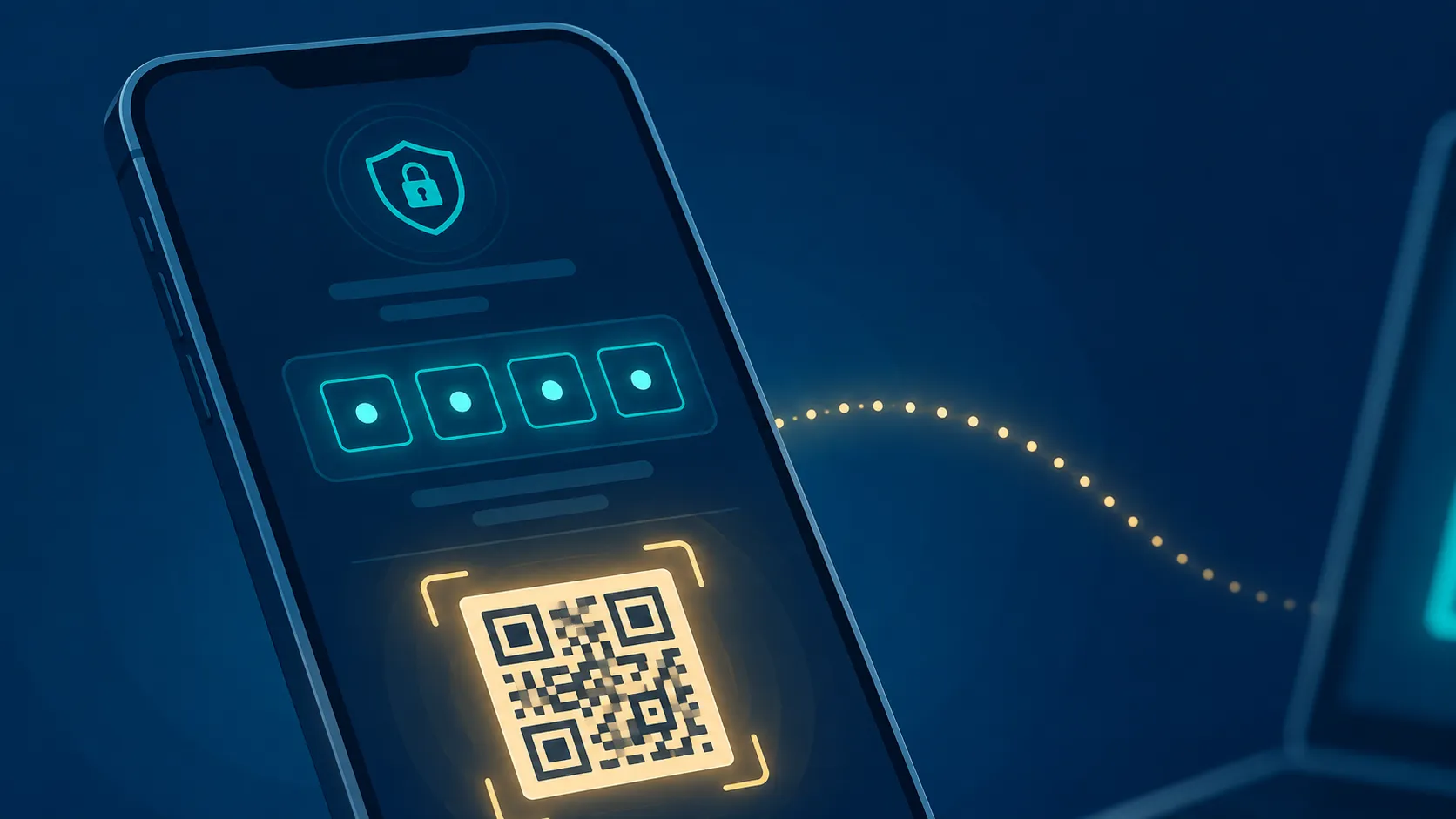
How to Share OTP Between Devices in 6 Simple Steps
1. Open a Purpose-Built Text Sharing Tool
Skip email and chat apps entirely. A tool like Online Clipboard is built specifically to move short pieces of text like OTPs between devices, and nothing gets stored longer than necessary.
2. Paste the OTP the Moment You Receive It
As soon as the OTP arrives on your phone, copy and paste it into the tool’s text box rather than trying to memorize or re-read it repeatedly.
3. Generate a PIN Instantly
Hit generate and you’ll get a short, unique PIN in under a second, no waiting, no processing delay.
4. Scan the QR Code Instead of Typing
Rather than typing the PIN on your laptop, just scan the QR code shown on your phone. It takes less time than typing four digits and removes any chance of a typo under time pressure.
5. Retrieve and Use It Immediately
Your laptop now shows the OTP in a read-only view. Copy it into the login field and you’re done, no app switching required.
6. Let It Auto-Delete, Don’t Save It Anywhere
With burn-after-read enabled, the OTP disappears the moment it’s viewed once. There’s nothing left behind on either device once you’ve used it, which is exactly how a one-time code should behave.

Is It Safe to Share OTP Between Devices This Way?
Yes, when the tool is built correctly for it. The core risk with any OTP-sharing method is the code sitting somewhere longer than it needs to, or being exposed to brute-force guessing. A properly built system protects against both: IP addresses are hashed rather than stored raw, and repeated wrong-PIN attempts trigger an automatic lockout rather than allowing unlimited guesses.
For broader guidance on safe digital banking and OTP practices in India, the Reserve Bank of India regularly publishes consumer awareness material on protecting one-time passwords and avoiding common fraud tactics. The core principle is the same one this method follows: never let an OTP persist longer than the moment you actually need it.
When This Method Makes the Most Sense
This approach is most useful when you’re logging into a banking portal, a work dashboard, or any two-factor authentication flow from a device other than the one that received the code, without wanting to leave a permanent trail across your accounts.
If you’re regularly juggling more than just OTPs between devices, codes, WiFi passwords, quick notes, it’s worth reading our full guide on why an online clipboard India users trust is becoming the default way to handle this, not just for OTPs but for anything you need to move quickly and securely.
Ready to try it the next time an OTP lands on the wrong device? Generate your first PIN here, it’s faster than typing the code manually ever was.