
Share Text Between Android and iPhone: 7 Effective Ways That Work
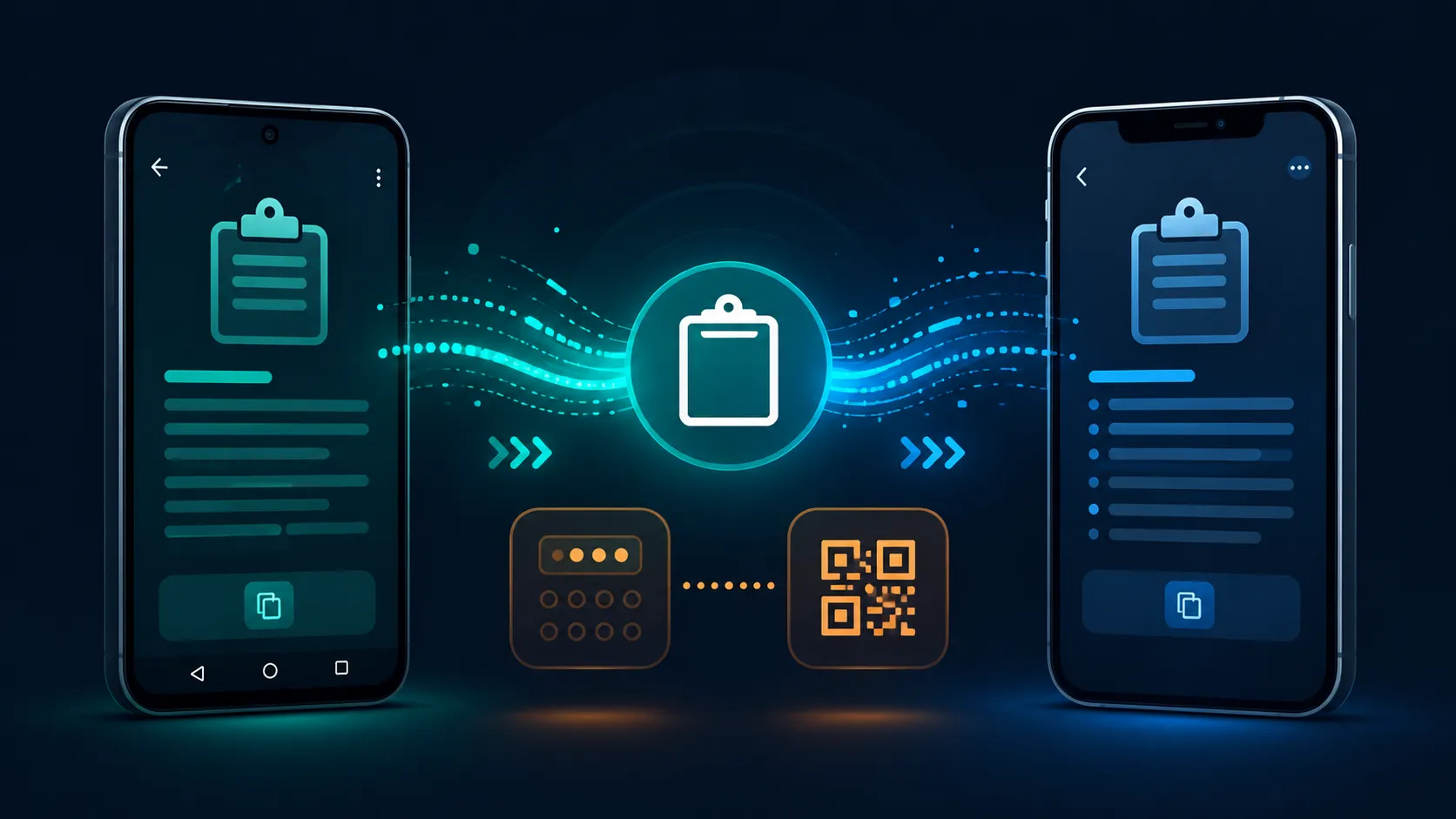
If you need to share text between Android and iPhone, the problem is usually getting the text across without sending an email, creating an account, or installing another app. A URL, address, note, code snippet, or temporary message can move quickly.
7 Practical Ways to Share Text Between Android and iPhone
1. Use an online clipboard
An online clipboard is one of the simplest choices for temporary text. Open Online Clipboard on Android, paste the content, and generate a PIN. Open the same tool on the iPhone and enter the PIN to retrieve it.
This works well when you need to share text between Android and iPhone without relying on the same messaging account or device ecosystem. Online Clipboard also provides QR retrieval when entering a PIN is inconvenient.
2. Use Quick Share when supported
Google now supports Quick Share to iPhone, iPad, and Mac on some Android devices. Compatibility depends on the device, so this is not universal.
On supported devices, the iPhone user can enable AirDrop visibility and the Android user can select the iPhone through Quick Share. Google also documents a QR route for devices without direct AirDrop support. That route is mainly designed for files, so it may be more than you need for a tiny text snippet.
3. Use a messaging app
WhatsApp, Telegram, Signal, and similar services are convenient when both devices already have access to the same conversation. Send the text from Android and open the conversation on the iPhone.
The downside is history. A one-time URL or short code can become buried inside a permanent chat.
4. Email the text to yourself
Email works almost everywhere. Paste the text into a message on Android, send it to yourself, and open the email on the iPhone.
This makes sense when you want the content searchable later, but less so for temporary information.
When to Share Text Between Android and iPhone With an Online Clipboard
An online clipboard makes sense when the text has a short lifespan. You might need to move a website address, small code fragment, instruction, or temporary credential between two devices.
If you regularly share text between Android and iPhone, the workflow stays simple: paste, generate a PIN, retrieve, and finish. Online Clipboard uses automatic expiry, while burn-after-read can remove content after retrieval.
5. Use a synced notes service
Google Keep, Microsoft OneNote, and other note services work across platforms. Create a note on Android, wait for synchronization, and open it on the iPhone.
This is better for information you want to keep, but it is not necessarily the fastest choice for one temporary snippet.
If your main goal is to share text between Android and iPhone once and forget it, a temporary clipboard is usually more direct.
6. Use a QR code
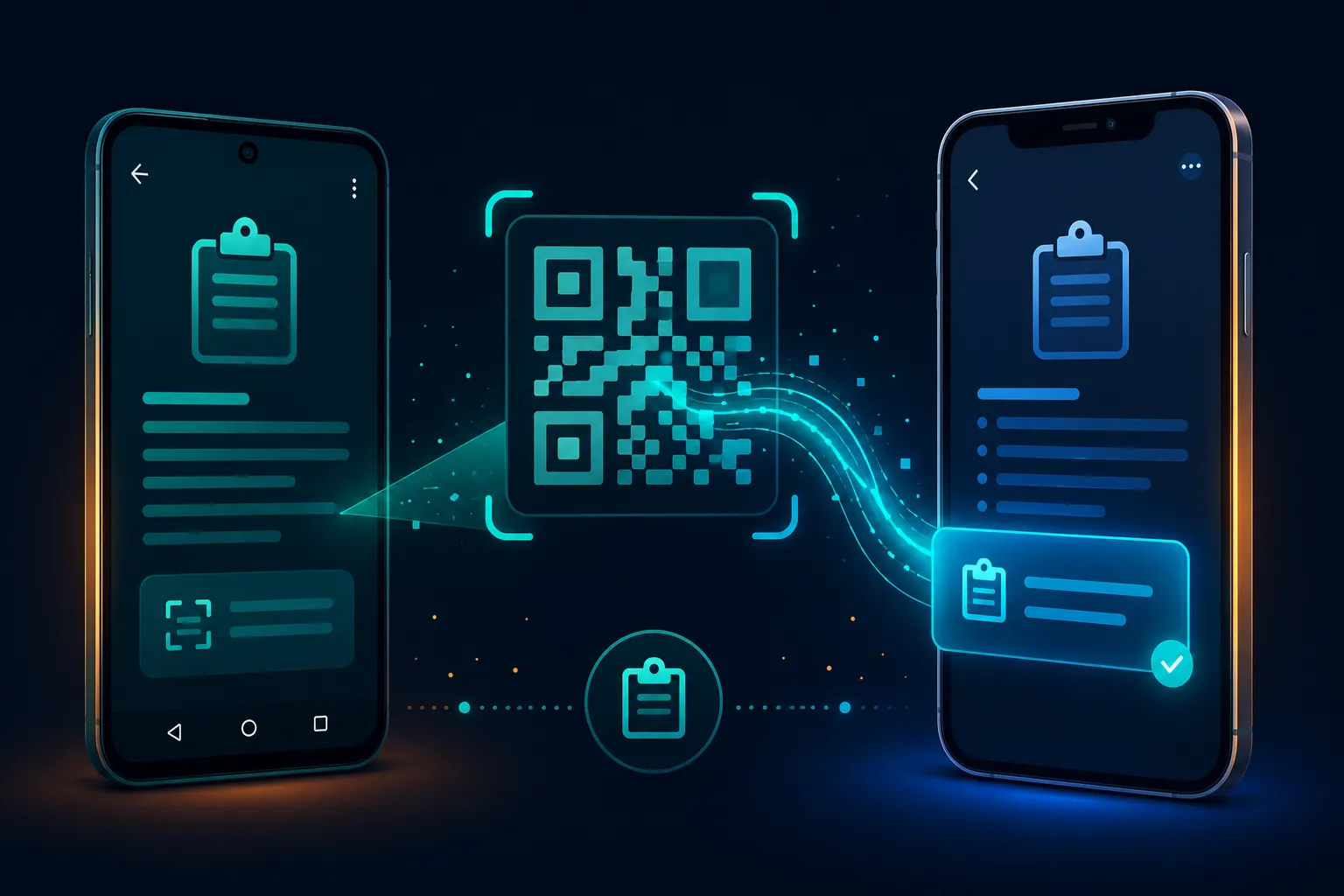
QR codes are useful when both phones are nearby. Instead of typing a long URL or configuration string, scan the code and open the shared content.
Online Clipboard supports QR retrieval, making it a practical alternative to manually entering a four-digit PIN. Our QR code text sharing guide covers this use case in more detail.
7. Use a temporary web paste
A temporary paste page can work when you need a browser-only transfer. Choose a service that clearly explains how long the content remains available and what protection is applied.
Check whether content expires, whether access attempts are protected, and whether data handling is explained.
Security Tips Before You Transfer Text
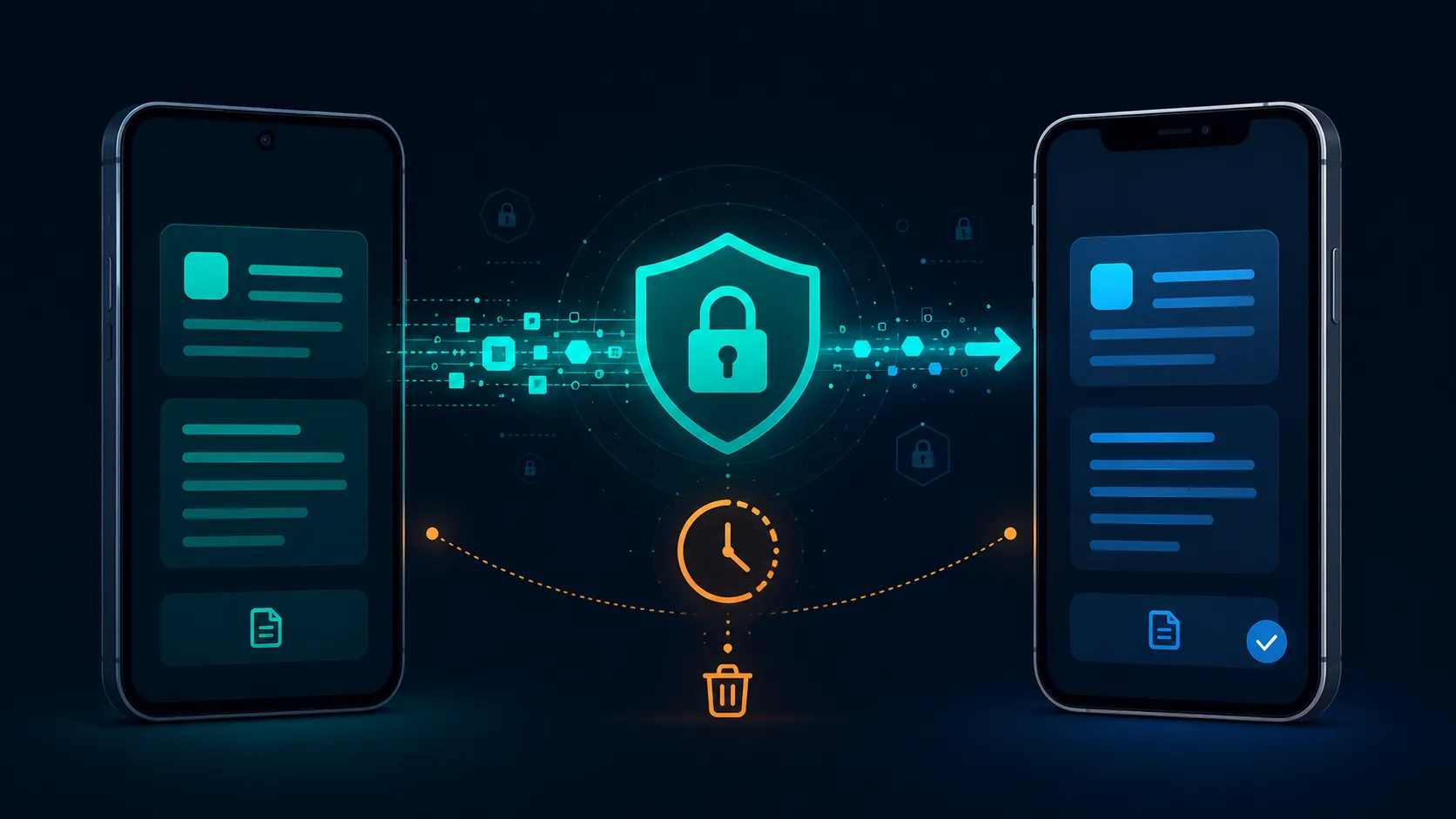
Not every piece of text deserves the same protection. A public website URL is low risk. A password, recovery code, banking detail, or authentication code is different.
The Cybersecurity and Infrastructure Security Agency recommends phishing-resistant multifactor authentication because common authentication methods can be targeted by attackers. If you transfer an OTP, understand what it protects and never give it to an unexpected caller or message sender. Read the CISA guidance on phishing-resistant MFA for more information.
For temporary text, use HTTPS and a service with clear retention rules. A browser-based tool is not automatically safe simply because it is convenient.
A Simple Android-to-iPhone Workflow
If you share text between Android and iPhone frequently, keep one method ready for temporary transfers. Copy the text on Android, open Online Clipboard, paste it, and generate a PIN. On the iPhone, open that service and retrieve the content with the PIN or QR option.
You can also use Online Clipboard for sharing code snippets and sharing WiFi passwords. If privacy is the main concern, our encrypted text sharing guide explains another approach.
Final Takeaway
The best way to share text between Android and iPhone depends on what you are transferring. Quick Share can be excellent on supported devices, messaging apps work for conversations, email and notes suit information you need to keep, and QR codes work well when phones are nearby.
For a short, temporary snippet, an online clipboard is simpler. It avoids account pairing and keeps the workflow focused on getting the text onto the other phone. It is especially useful when you need to share text between Android and iPhone without maintaining a chat thread.
Start with the Online Clipboard tool when you need a fast browser-based transfer.