
QR Code Text Sharing: 6 Powerful Ways to Send Text Instantly (2026)
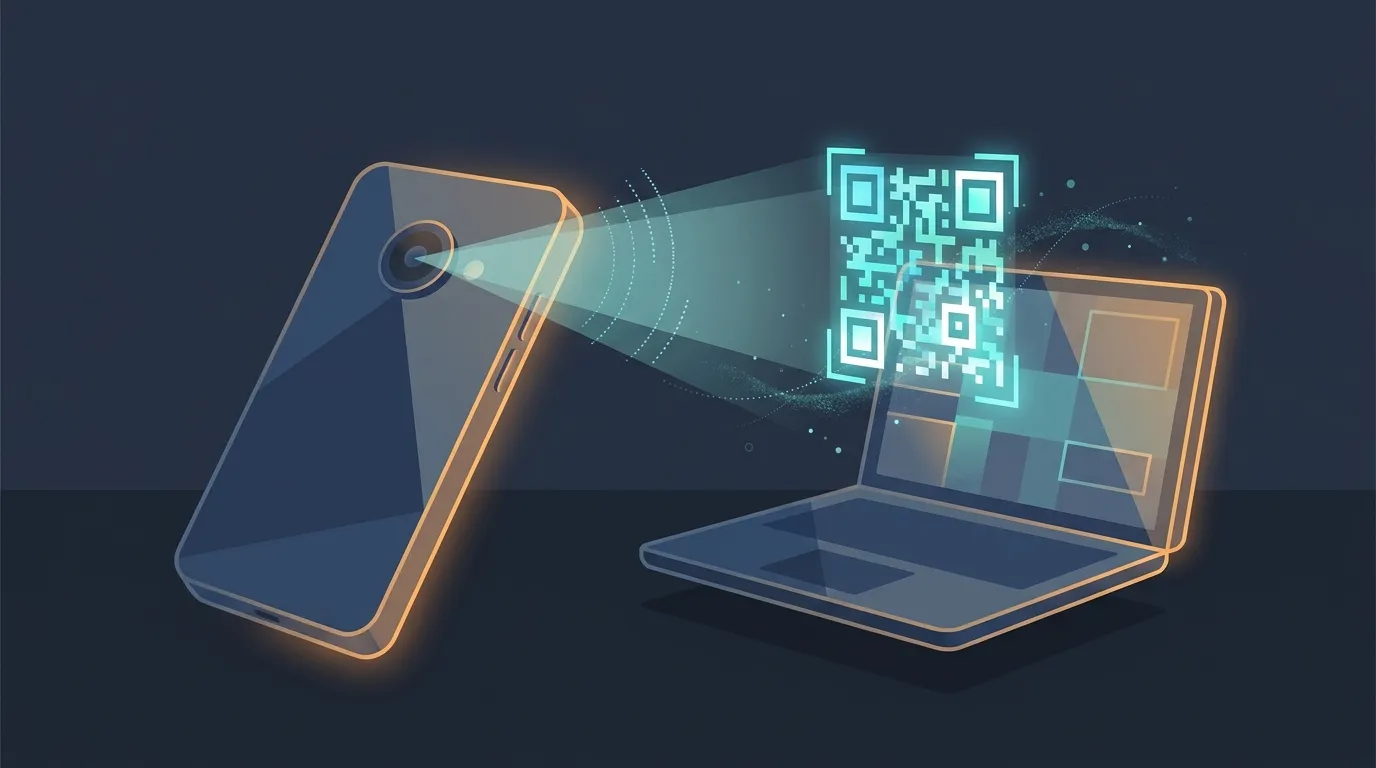
Why QR Code Text Sharing Beats Typing Things Out Manually
Typing a long PIN, a WiFi password, or a link on a tiny phone keyboard is annoying, and it’s easy to mistype a character and end up locked out after too many wrong attempts. QR code text sharing skips that entirely. Instead of reading a code off one screen and typing it into another, you just point a camera and the text loads automatically, no manual entry, no typos, no back and forth between two devices.
This is one of the quieter features people miss when they first use Online Clipboard. Every PIN you generate can also be pulled up as a scannable QR code, so if the two devices are physically near each other, like a laptop and a phone sitting side by side on a desk, scanning is faster than typing every single time, especially on a cramped mobile keyboard where a stray tap sends you back to square one.
It’s a small detail, but it changes how the tool actually gets used day to day. Instead of squinting at four digits and re-typing them under pressure, you scan and you’re done in under two seconds, and it works just as well for a quick handoff at a coffee shop as it does at your desk. For anyone managing a small office or a home network, walking a guest through a four-digit PIN over and over gets tedious fast, and a scannable code turns that into a one-second action instead of a small negotiation every time someone new needs access.
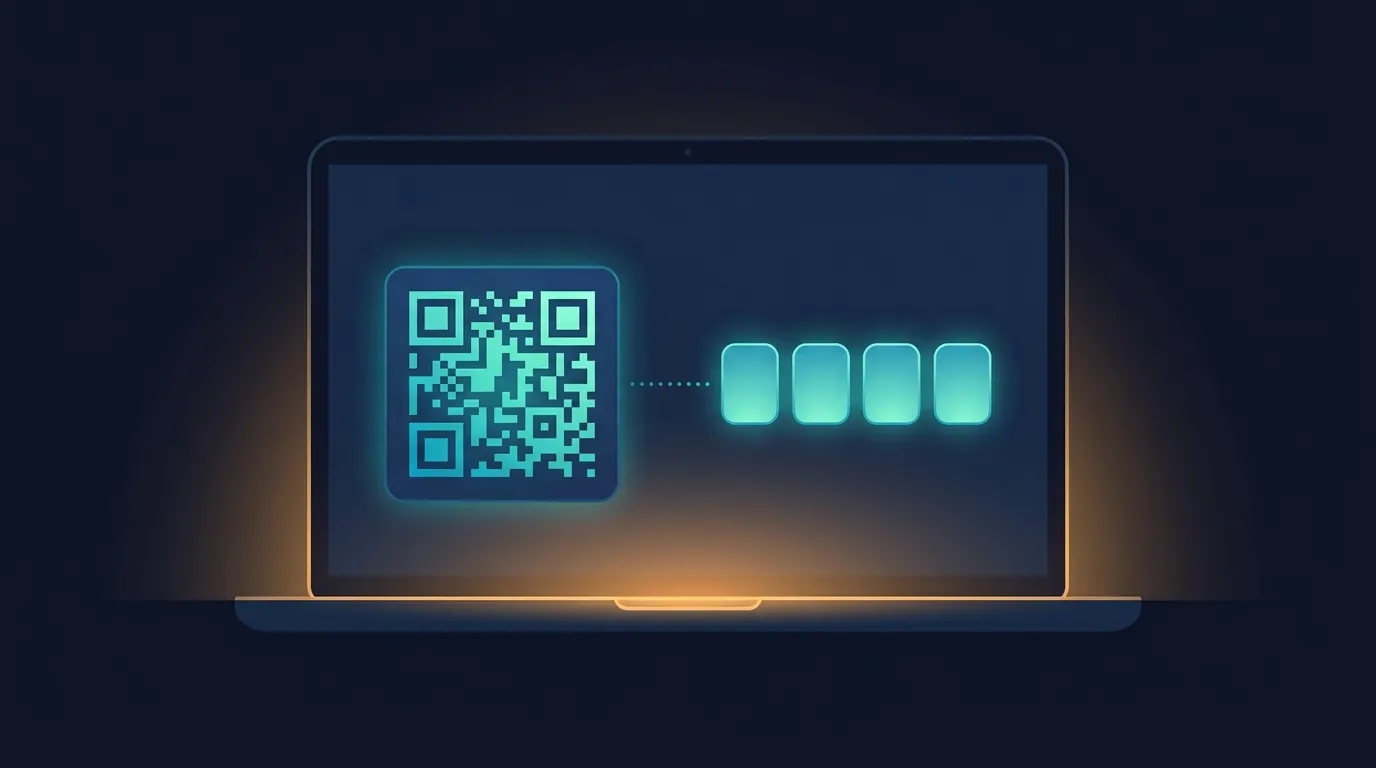
How QR Code Text Sharing Works With Online Clipboard
The flow is simple by design. You paste your text into the box, get a 4-digit PIN, and right next to that PIN sits a generated QR code. Scan it with any phone camera, no separate app required, and the retrieval page opens automatically with your text already loaded and ready to copy.
Under the hood, the same protections apply whether someone scans the code or types the PIN manually. IP addresses are still run through salted HMAC hashing before storage, the paste still expires on your chosen timer, and burn-after-read still works exactly the same way it always does. Scanning doesn’t trade away any of the privacy the tool already promises, it’s purely a faster way to move the same protected data from one screen to another.
This pairs well with things you’re probably already doing. If you regularly share OTPs between devices or hand off a WiFi password to a guest, scanning instead of typing removes the one step most people fumble, getting a short code from one screen to another without a mistake. Guidance from the National Informatics Centre notes that QR-based data transfer meaningfully reduces manual entry errors compared to typed codes, which lines up with what most people experience firsthand once they try it.

When Scanning Beats Typing
Some situations are built for QR codes specifically. Handing your laptop screen to a colleague so they can scan a code with their own phone is faster than reading four digits aloud across a desk. Setting up a new device and needing to move a long piece of text, like a configuration string or an API key, is far less error-prone with a scan than with manual retyping under time pressure. Even a simple whatsapp web alternative moment, where you just want text on your phone without opening a messaging app at all, works better with a camera than a keyboard.
This approach also matters when the text itself is long or contains special characters that are painful to type on a mobile keyboard. A scan captures the whole thing exactly as it was pasted, no autocorrect, no missed symbols, no retyping a forty-character string and hoping you got every character right on the second attempt. Students moving notes between a personal phone and a shared lab computer, or freelancers handing off login details to a client, get the same benefit: less friction, fewer mistakes, and nothing left behind once the window closes.
If you haven’t tried it yet, generate a PIN on the Online Clipboard homepage, look for the QR code sitting next to it, and scan it straight from your phone’s camera app. It works the same as the cross device clipboard flow you might already be using, just without any typing involved at all.