
Share Text Between Windows and Mac: 7 Best Free Methods (2026)

If you use a Windows laptop at work and a MacBook at home, or you’re moving files between two different operating systems, you already know copy-paste doesn’t just work across platforms. There’s no shared clipboard between Windows and Mac unless you buy into one ecosystem completely. This guide walks through the fastest ways to share text between Windows and Mac without emailing yourself notes or texting them through WhatsApp Web.
Why You Can’t Just Copy and Paste Between Windows and Mac
Apple’s Universal Clipboard works great, but only between Apple devices. Windows has nothing built in that talks to macOS. If you want to share text between Windows and Mac reliably, you need either a cloud account synced on both machines, a browser extension, or a lightweight web tool that doesn’t care what operating system you’re running.
Method 1: Use an Online Clipboard (No Account, No Extension)
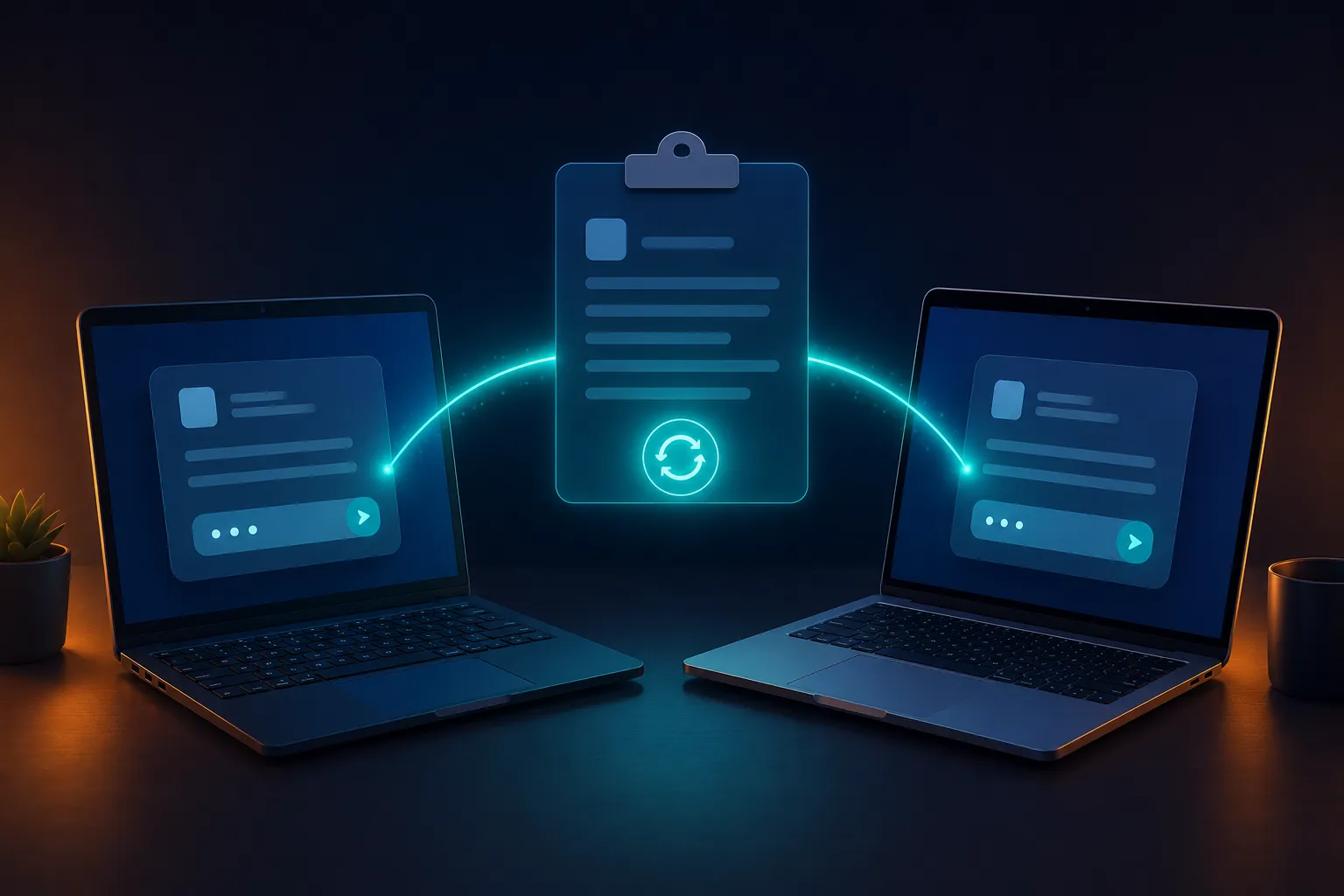
The simplest way to share text between Windows and Mac is a browser-based clipboard that works identically on both. Paste your text on Online Clipboard, get a 4-digit PIN, and open the same page on the other machine to retrieve it. No sign-up, no software install, no OS-specific app. It works in any browser, on any operating system, because the tool never touches your local clipboard, it just holds your text temporarily on a server.
This matters more than it sounds. A lot of clipboard sync tools only run on one platform or require both machines to log into the same account. If you’re on a work Windows machine that won’t let you install anything, a browser tab is often your only option.

Method 2: iCloud for Windows (If You’re Already in Apple’s Ecosystem)
If you already use iCloud on your Mac and don’t mind installing iCloud for Windows, Apple’s own sync tools can move text through Notes or Pages documents. It’s clunky for quick one-off text and it ties you into an Apple ID, but if you’re already paying for iCloud storage, it’s there.
Method 3: Cloud Notes Apps (Google Keep, OneNote)
Google Keep and Microsoft OneNote both sync across Windows and Mac through the browser or desktop apps. These work fine for anything you’ll need again later, but they’re overkill if you just want to share text between Windows and Mac once and forget about it. You also end up with clutter in your notes app from things you never meant to save.
Method 4: Email or Messaging Apps
Emailing yourself is the oldest trick in the book, and it still works, just slowly. If you’d rather skip the inbox entirely, our guide on free text sharing covers faster no-signup options, and if the browser you’re using doubles as your messaging client, this WhatsApp Web alternative breaks down why a dedicated clipboard beats chat apps for pasting text you don’t need a record of.
Method 5: USB Drive or File Transfer
If both machines are physically next to you, a USB drive still works, though it’s overkill for a line of text. AirDrop doesn’t exist for Windows at all, so this only helps if you’re moving files, not quick text snippets.
Which Method Actually Makes Sense
For a one-time password, a link, or a paragraph you need on the other machine right now, skip the sync apps entirely. An online clipboard is built exactly for this: you don’t need it to remember anything past the next 10 minutes, and you don’t want your notes app cluttered with throwaway text. If you regularly share text between Windows and Mac while coding, our post on sharing code snippets covers formatting-safe transfer, and if privacy matters more than speed, encrypted text sharing walks through what actually happens to your data in transit.
A Quick Example
Say you’re on a client call using a Windows laptop and someone shares a tracking number or a Wi-Fi code in the chat. Your personal MacBook is sitting right next to you, logged into a different account entirely. Rather than emailing it to yourself or texting it through a messaging app tied to your phone number, you paste it into a browser tab, generate a PIN, and pull it up on the Mac in under ten seconds. That is really all you need when you share text between Windows and Mac occasionally instead of constantly.
Staying Safe When You Share Text Between Windows and Mac
Whatever tool you use to share text between Windows and Mac, avoid pasting sensitive information like passwords or ID numbers into public tools that don’t auto-expire. India’s Computer Emergency Response Team, CERT-In, regularly advises against leaving sensitive data on shared or public systems longer than necessary, which is exactly why auto-expiry and burn-after-read matter more than convenience alone. A tool that deletes itself after one read is safer by design than one that keeps a permanent record somewhere.
Online Clipboard was built with that in mind: PINs expire automatically, IP addresses are hashed rather than stored raw, and repeated wrong PIN attempts get locked out. You can try it directly from the homepage the next time you need to share text between Windows and Mac, no matter which one you happen to be sitting at.