
Copy Text from Phone to Laptop: 7 Easy Ways That Actually Work
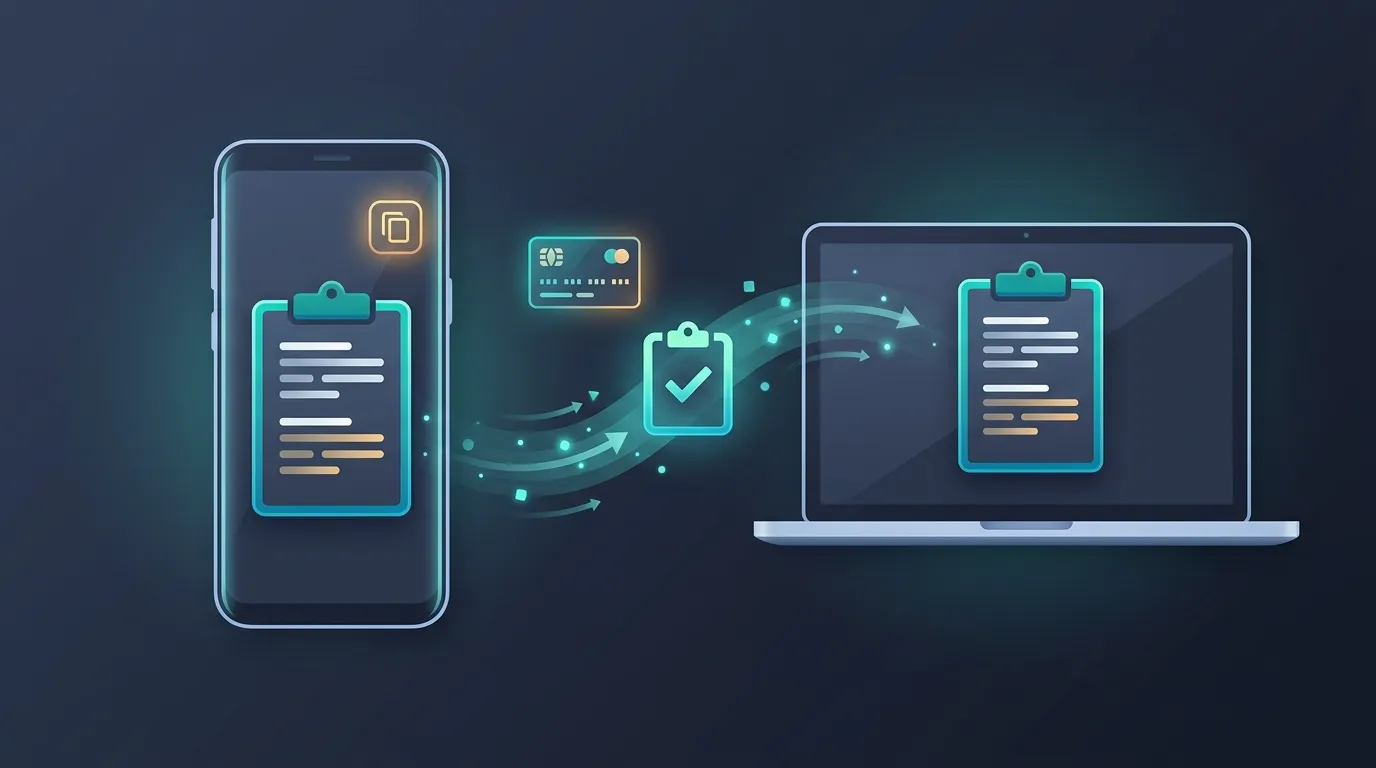
If you need to copy text from phone to laptop, there is no reason to email every note to yourself. A URL, OTP, WiFi password, code snippet, or note can move from Android to a laptop in seconds.
7 Easy Ways to Copy Text from Phone to Laptop
1. Use an online clipboard
An online clipboard is one of the simplest choices for temporary text. Open Online Clipboard on your phone, paste the content, and get a short PIN. Open the service on your laptop and enter the PIN to retrieve the text.
This method works well when you want to copy text from phone to laptop without an account or desktop application. Online Clipboard also supports QR retrieval, so you can scan instead of typing the PIN.
If your main goal is moving information between devices, our cross-device clipboard guide explains another practical workflow.
2. Use Phone Link on Windows
Windows users with supported Android devices can use Microsoft Phone Link and Link to Windows. Microsoft documents a cross-device copy and paste feature for select Android devices, allowing copied text and images to move between the phone and PC.
The limitation is compatibility. Microsoft says the feature works only on selected devices, so check support first.
3. Send the text through a messaging app
WhatsApp, Telegram, Signal, and similar services can work when you have access to the same account on your laptop. This is convenient if the text already belongs in a conversation or you want a copy of the exchange later.
The downside is unnecessary chat history for a one-time snippet.

4. Email the text to yourself
Email is still a practical fallback. Paste the text into an email on your phone, send it to yourself, then open the message on your laptop.
Email is better when the information belongs in your inbox. For a temporary URL or short code, it adds unnecessary steps.
When to Copy Text from Phone to Laptop with an Online Clipboard
If you regularly copy text from phone to laptop, an online clipboard can reduce the number of steps. You avoid opening email, searching old messages, or waiting for sync.
For a long website address, paste it into Online Clipboard, retrieve it on the laptop, and continue working.
5. Use a synced notes app
Google Keep, OneNote, and other cloud note applications are useful when the text needs to remain available. Write or paste the information on your phone, let it synchronize, and open the note on your laptop.
It works well for recurring notes and research, but is less efficient for one-time snippets.
6. Scan a QR code
QR codes are useful when the phone and laptop are physically close. A QR-based workflow can save you from typing long URLs, short configuration strings, or instructions.
Online Clipboard includes QR retrieval, which makes this method useful for quick temporary transfers. You can learn more in our QR code text sharing guide.
7. Use a USB cable
USB works without a browser service and is useful when you are already moving files. For plain text, however, a cable can be slower than a browser.

Which Method Is Best?
Choose the method based on the job.
Use an online clipboard when you want to copy text from phone to laptop temporarily and quickly. Use Phone Link if your Android device is supported and you want integrated Windows functionality. Use messaging apps when the text belongs in a conversation. Choose email or notes when you need a lasting record. Use QR codes for short content when both devices are nearby, and use USB when offline or file transfer matters.
Security matters too. Do not treat a password, recovery code, banking credential, or authentication code like an ordinary URL. CISA recommends stronger phishing-resistant authentication methods because traditional authentication factors can be targeted by attackers. Read the CISA guidance on phishing-resistant MFA for more information.
A Simple Workflow for Temporary Text
If you need to copy text from phone to laptop several times a week, keep the workflow simple. Copy the content on your phone, open Online Clipboard, paste it, and retrieve it from the laptop using the PIN or QR option.
You can also use the service for specific tasks covered in our guides about sharing code snippets and sharing WiFi passwords. For a privacy-focused workflow, see our guide to sharing text anonymously online.
Final Takeaway
The best way to copy text from phone to laptop depends on what you are transferring and how long you need it. A notes app is better for permanent information, while Phone Link is useful on supported devices. Messaging and email can leave unnecessary history.
For short snippets, copy text from phone to laptop with a temporary browser tool. For quick one-time transfers, an online clipboard keeps the process simple: copy, paste, retrieve, and continue. Start with the Online Clipboard tool when you need to move a short piece of text between your phone and laptop without creating an account.