
Text Transfer from Phone: 7 Proven Ways to Move Text to Your PC Fast
Text Transfer from Phone: 7 Proven Ways to Move Text to Your PC Fast
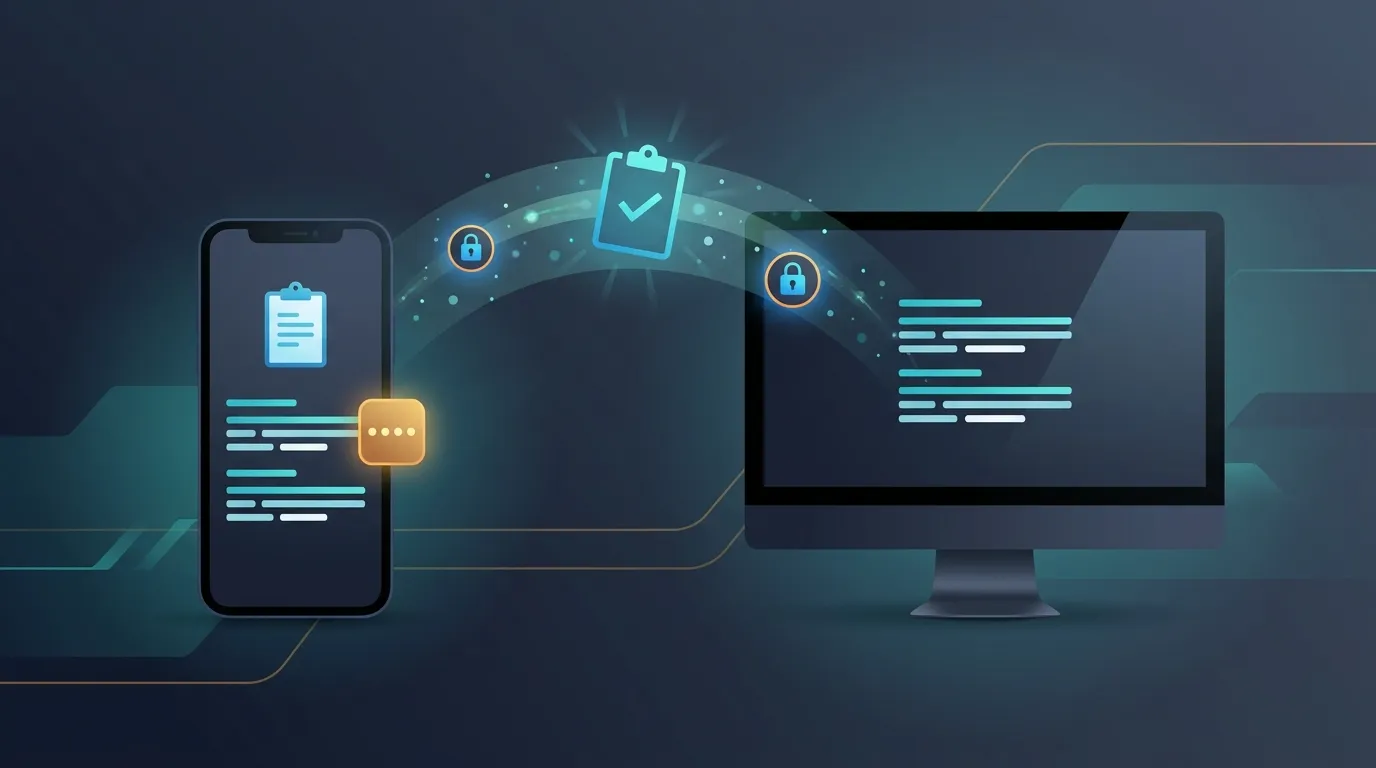
Moving a paragraph, OTP, address, WiFi detail, code fragment, or note from your phone to a computer should not require emailing yourself or installing another app. Text transfer from phone is easiest when you choose a method that matches what you are actually sharing. For a one-time piece of text, a browser-based PIN tool can be faster than setting up device sync.7 Practical Ways to Move Text from Phone to PC
1. Use an online clipboard with a PIN
For short, one-time transfers, an online clipboard is one of the simplest options. Open Online Clipboard on your phone, paste the text, and get the generated PIN. Then open the same tool on your computer and enter the PIN to retrieve it. This method needs no account or app. Online Clipboard also supports QR retrieval, so you can scan instead of typing the PIN. Text automatically expires after the configured period, and burn-after-read can remove content after retrieval. Our cross-device clipboard guide covers another practical approach for moving snippets between devices.2. Send the text to yourself in a messaging app
WhatsApp, Telegram, Signal, or another messaging service can work when you already use it on both devices. The downside is relying on an account, app session, or web client. For a single address, short code, or temporary note, text transfer from phone does not always need a full messaging workflow.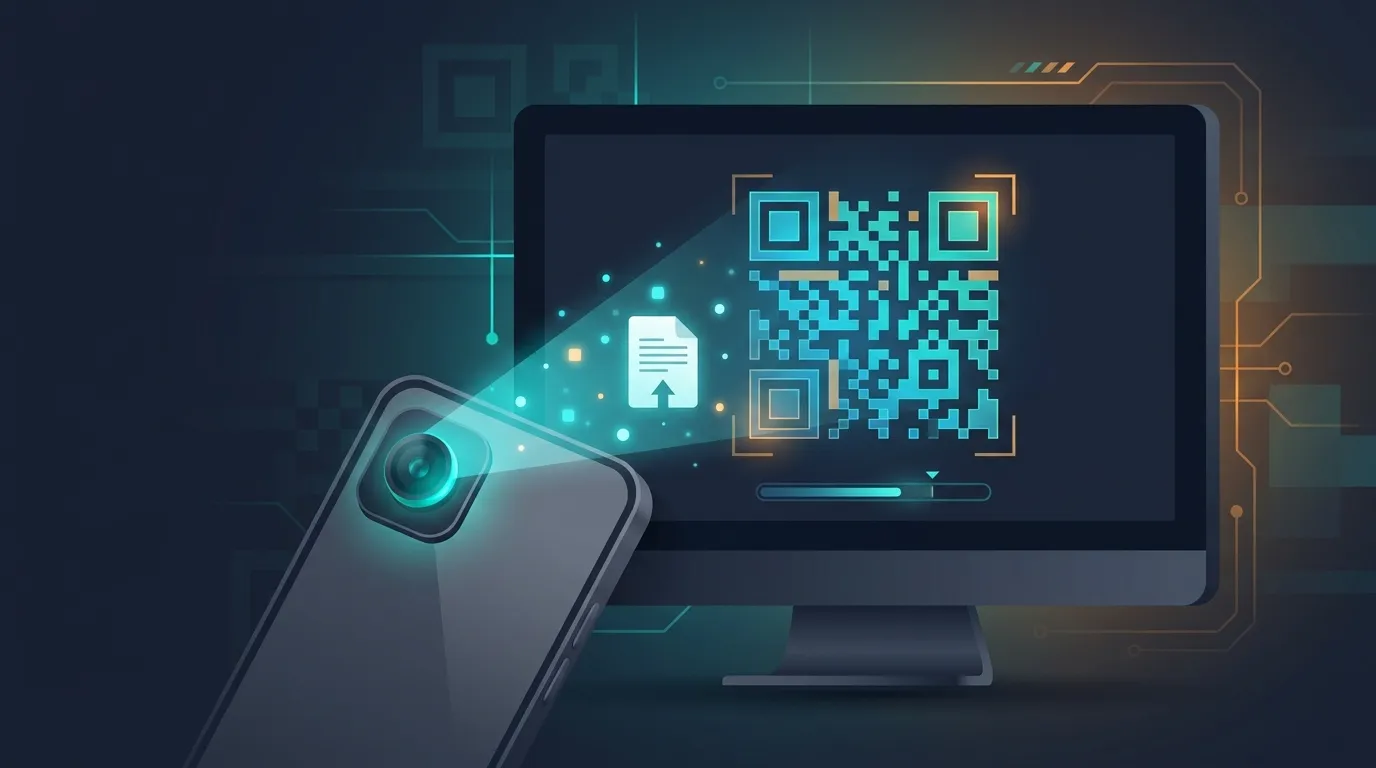
3. Email yourself
Email makes sense when the text needs to become part of a permanent record. But it is inefficient for temporary information because you must compose, send, find the message again, and copy the text. A dedicated tool can make text transfer from phone much quicker.
4. Use a cloud notes app
Google Keep, OneNote, or another synced notes service is better for information you expect to reuse. Write or paste the content on your phone, wait for synchronization, then open the note on your computer.
This is useful for persistent notes, but unnecessary for one-time text transfer from phone.
5. Use browser synchronization
Some browsers let you copy content between signed-in devices. This is convenient if you already use the same browser everywhere, but you may need to stay signed in on both devices.
6. Use a QR code for short text
QR codes work well when the text is short and the receiving device has a camera. Scanning can be faster than typing a URL, short instruction, or small configuration value.
Online Clipboard includes QR retrieval, making it practical when moving text from phone to a nearby computer.
7. Use a USB cable
A cable is useful when you do not want the text to pass through an online service. However, USB workflows are generally better for files than tiny snippets. For ordinary snippets, USB can be less convenient than browser-based text transfer from phone.
Which Method Should You Choose?
Use an online clipboard for fast, temporary sharing with no account. Use messaging apps for convenience, email or notes for permanent records, QR codes for short text, and USB when offline transfer matters most.
A shopping list and a banking credential should not be treated the same way. Avoid putting passwords, recovery codes, or financial information into casual sharing tools unless you understand their security and retention model.

For safer text transfer from phone
Check whether the service uses HTTPS, limits access attempts, expires temporary data, and explains how it handles IP addresses and stored content.
A Better Workflow for Temporary Text
If you regularly move snippets between an Android phone and a Windows PC, use a simple workflow. Copy the text, open Online Clipboard, paste it, and retrieve it from the second device using the PIN or QR option. When finished, let the item expire or use burn-after-read when appropriate.
You can also use Online Clipboard for our guides on sharing WiFi passwords, sharing code snippets, and sharing text anonymously online. These workflows are useful when information only needs to reach another device and does not need a permanent chat history.
What About Privacy?
Online Clipboard is designed for temporary sharing. It uses automatic expiry, optional burn-after-read, IP-based brute-force protection, and salted HMAC IP hashing rather than storing raw IP addresses. API keys are encrypted, and automated cleanup removes expired records.
Treat highly sensitive credentials differently and use a purpose-built secure system when exposure could cause serious harm.
Final Takeaway
Text transfer from phone should be simple. If you only need to move a short piece of text from a phone to a computer, you do not necessarily need a messaging account, email thread, or complicated sync setup. Choose text transfer from phone based on how temporary the information is, how sensitive it is, and how quickly you need it on the other screen.
For quick one-time sharing, an online clipboard with a short PIN or QR retrieval can be one of the most practical options. Start from the Online Clipboard homepage and move the text in a few steps.