
Send Text from Android to PC: 7 Effective Ways to Transfer Anything Fast
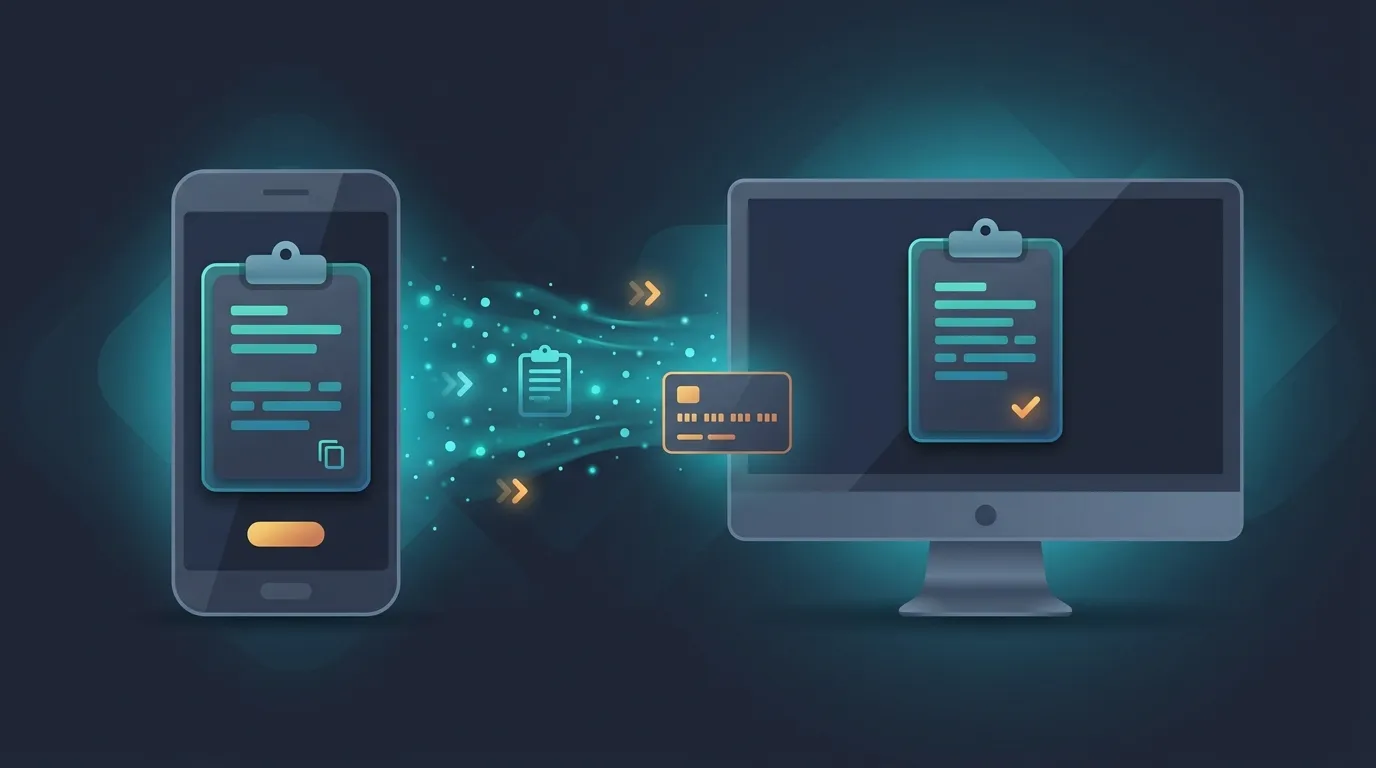
If you need to send text from Android to PC, you do not need to email yourself every time. A copied URL, OTP, address, WiFi password, code snippet, or short note can move between your phone and computer in seconds when you use the right method.
7 Ways to Send Text from Android to PC
1. Use an online clipboard
An online clipboard is one of the quickest options for temporary text. Open Online Clipboard on your Android phone, paste your content, and receive a short PIN. Open the service on your PC and enter that PIN to retrieve the text.
This approach works well when you want to send text from Android to PC without creating an account, installing software, or keeping a permanent chat history. Online Clipboard also supports QR retrieval for situations where scanning is easier than entering a PIN.
If your main requirement is moving text between devices, see our guide to cross-device clipboard sharing.
2. Use your messaging app
WhatsApp, Telegram, Signal, and similar apps can move text to a PC when the same account is available on both devices. This is convenient for conversations, but it is not always ideal for one-time snippets.
3. Email the text to yourself
Email is simple and familiar. It is useful when the content needs to remain in your mailbox, but it adds extra steps for a temporary transfer.
When Should You Use an Online Clipboard to Send Text from Android to PC?
An online clipboard makes the most sense for short-lived information. You might need to move a website address from your phone while working on a desktop, copy a configuration value into a PC application, or move a short code fragment without starting a conversation.
If you frequently send text from Android to PC, this kind of tool removes unnecessary steps. The advantage is speed. You paste once, retrieve once, and finish. If the service supports automatic expiry, the temporary item does not need to remain available indefinitely.
4. Use Google Keep or another synced notes app
Cloud notes are better when you want to keep the text for later. Add the content on Android, wait for synchronization, then open the note on your PC. This is useful for recurring information, but it is more infrastructure than you need for a one-time transfer.
5. Use browser sync
Some browsers let you send tabs, links, or selected content between signed-in devices. This is convenient when your phone and PC already use the same browser ecosystem.
6. Scan a QR code
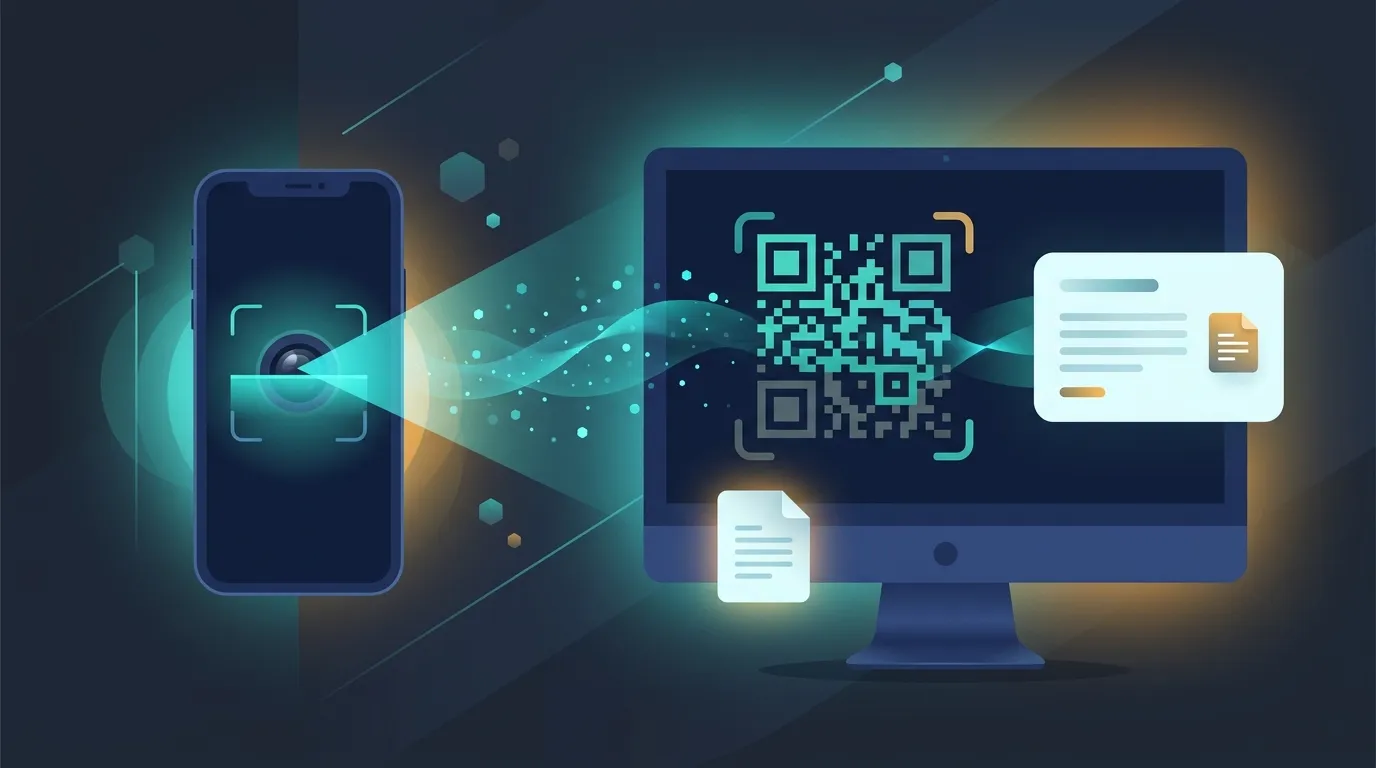
QR transfer is useful when you are sitting near your computer and the text is short. Instead of typing a long URL or identifier, scan the code with your phone or use a QR-based retrieval workflow from the receiving device.
Our QR code text sharing guide explains this approach in more detail.
7. Use a USB connection
A USB cable is useful when internet access is unavailable or when you are already moving files. For a small text snippet, however, it can be unnecessarily slow compared with a browser-based transfer.
Do Not Treat Every Text Snippet as Sensitive
Speed should not override security. A public URL and a login verification code are very different types of information. If you are transferring an OTP, remember that the code is an authentication factor, not ordinary text. CISA notes that SMS and voice-based MFA can be vulnerable to phishing, SIM-swap attacks, and other threats. Read the CISA guidance on phishing-resistant MFA before treating OTPs as routine shareable content.
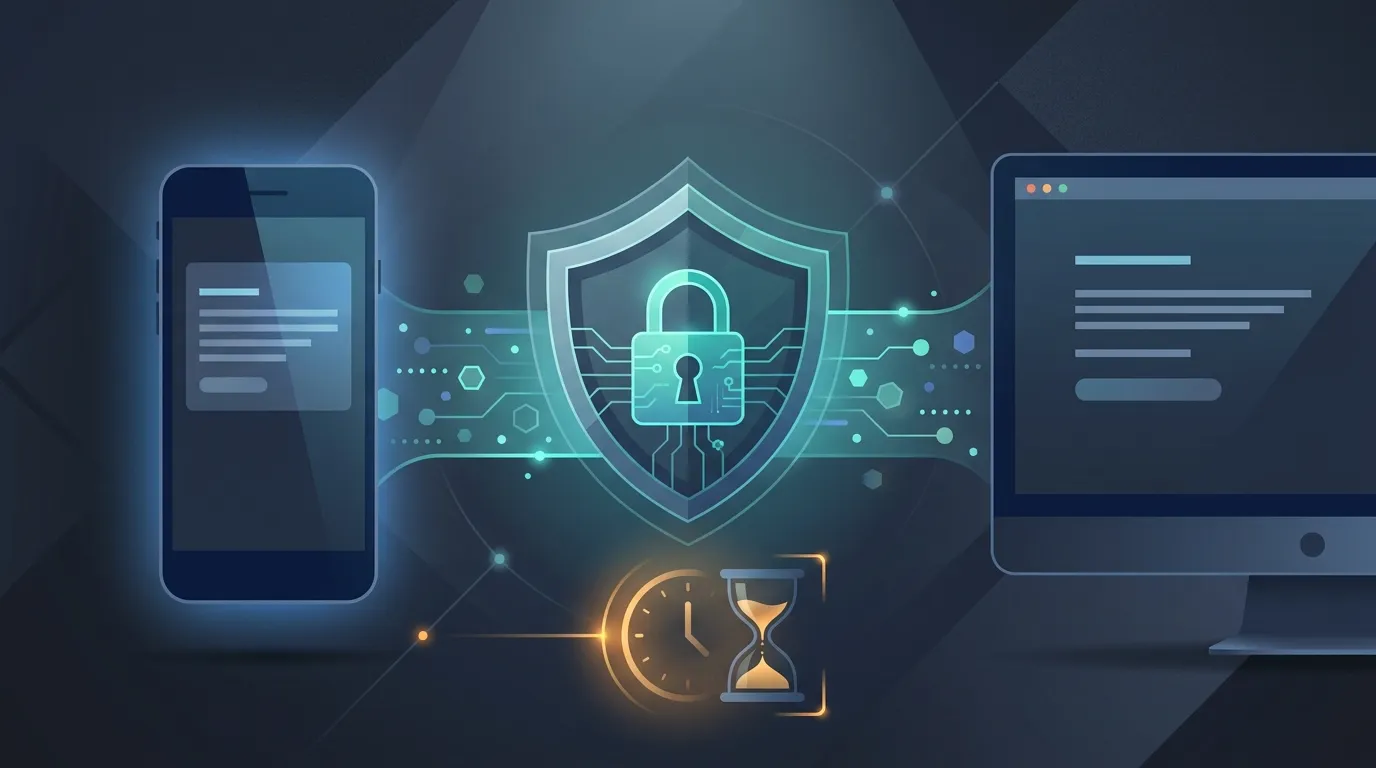
For temporary text, choose a service that uses HTTPS and clearly explains expiry and data handling. Do not paste passwords, recovery codes, banking credentials, or other highly sensitive secrets into a general-purpose transfer service unless you understand the risks.
A Simple Way to Send Text from Android to PC
If you regularly send text from Android to PC, keep the process consistent. Copy the text on your phone, open Online Clipboard, paste it, and retrieve it on your PC using the PIN or QR option. When you are finished, allow the temporary item to expire or use burn-after-read when appropriate.
You can also use Online Clipboard for sharing code snippets and sharing WiFi passwords when those specific use cases match what you need to transfer.
Final Takeaway
The best way to send text from Android to PC depends on what you are moving. Use messaging or notes when you need a history, email when the content belongs in your inbox, USB when you need an offline route, and an online clipboard when you need a quick one-time transfer.
For short temporary snippets, the simplest way to send text from Android to PC is often the best: copy, paste, retrieve, and move on. Start with the Online Clipboard tool when you need a fast browser-based transfer.